> ## Documentation Index
> Fetch the complete documentation index at: https://docs.blocks.team/llms.txt
> Use this file to discover all available pages before exploring further.
# Custom MCP
> Add custom MCP servers to your workspace and choose which agents can use them
## Overview
Custom MCP (Model Context Protocol) servers extend what coding agents can do by giving them access to external tools and data sources. Add the MCP server once at the workspace level, define it with a JSON configuration object, reference global environment variables for secrets, and then choose which agents can use it.
Configure custom MCP servers at **Dashboard → Settings → MCP Servers**.
MCP servers are workspace-wide and can be enabled or disabled per agent.
 ## Add a custom MCP server
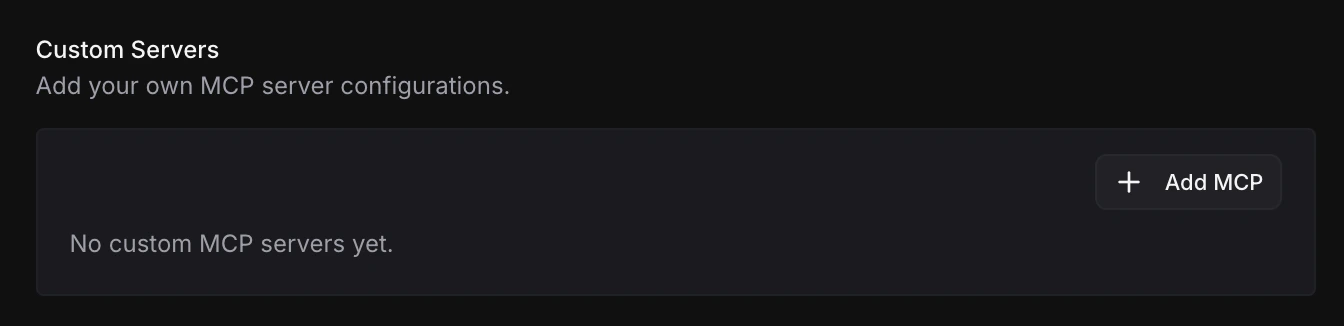
From **Settings → MCP Servers**, scroll to **Custom Servers** and click **Add MCP**. The create dialog includes two parts:
* **Environment variables** — copy `${env:VARIABLE_NAME}` references for global secrets you already saved in the workspace.
* **MCP Configuration JSON** — paste the MCP server config that Blocks should run for agents.
## Add a custom MCP server
From **Settings → MCP Servers**, scroll to **Custom Servers** and click **Add MCP**. The create dialog includes two parts:
* **Environment variables** — copy `${env:VARIABLE_NAME}` references for global secrets you already saved in the workspace.
* **MCP Configuration JSON** — paste the MCP server config that Blocks should run for agents.
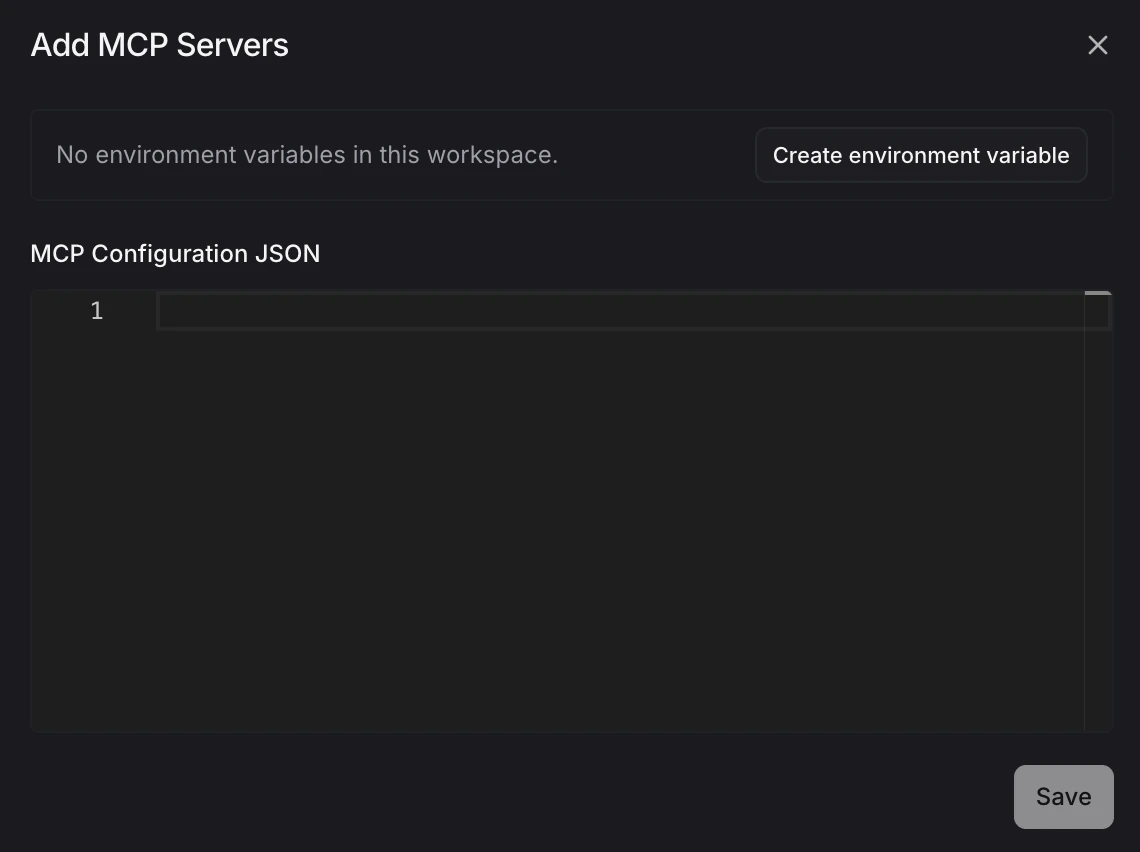 If the workspace has no global environment variables yet, the dialog shows a message with a **Create environment variable** button. Use it to go to **Settings → Environment Variables**, add the secret in the **Global** namespace, then return to the MCP server dialog.
See [Environment Variables](/using-blocks/features/environment-variables) for the full variable flow.
## Reference environment variables
Use `${env:VARIABLE_NAME}` in `env` values anywhere the MCP config needs a secret value. Blocks resolves the value at runtime before starting the MCP server, so the actual secret does not need to be pasted into the JSON.
```json theme={null}
{
"command": "npx",
"args": ["-y", "@my-org/my-mcp-server"],
"env": {
"API_KEY": "${env:MY_VARIABLE}",
"BASE_URL": "${env:MY_SERVICE_URL}"
}
}
```
When global environment variables exist, open the selector, search for the variable, and click the variable row or copy icon. The selector lists your global environment variables and copies the formatted `${env:...}` value for you.
If the workspace has no global environment variables yet, the dialog shows a message with a **Create environment variable** button. Use it to go to **Settings → Environment Variables**, add the secret in the **Global** namespace, then return to the MCP server dialog.
See [Environment Variables](/using-blocks/features/environment-variables) for the full variable flow.
## Reference environment variables
Use `${env:VARIABLE_NAME}` in `env` values anywhere the MCP config needs a secret value. Blocks resolves the value at runtime before starting the MCP server, so the actual secret does not need to be pasted into the JSON.
```json theme={null}
{
"command": "npx",
"args": ["-y", "@my-org/my-mcp-server"],
"env": {
"API_KEY": "${env:MY_VARIABLE}",
"BASE_URL": "${env:MY_SERVICE_URL}"
}
}
```
When global environment variables exist, open the selector, search for the variable, and click the variable row or copy icon. The selector lists your global environment variables and copies the formatted `${env:...}` value for you.
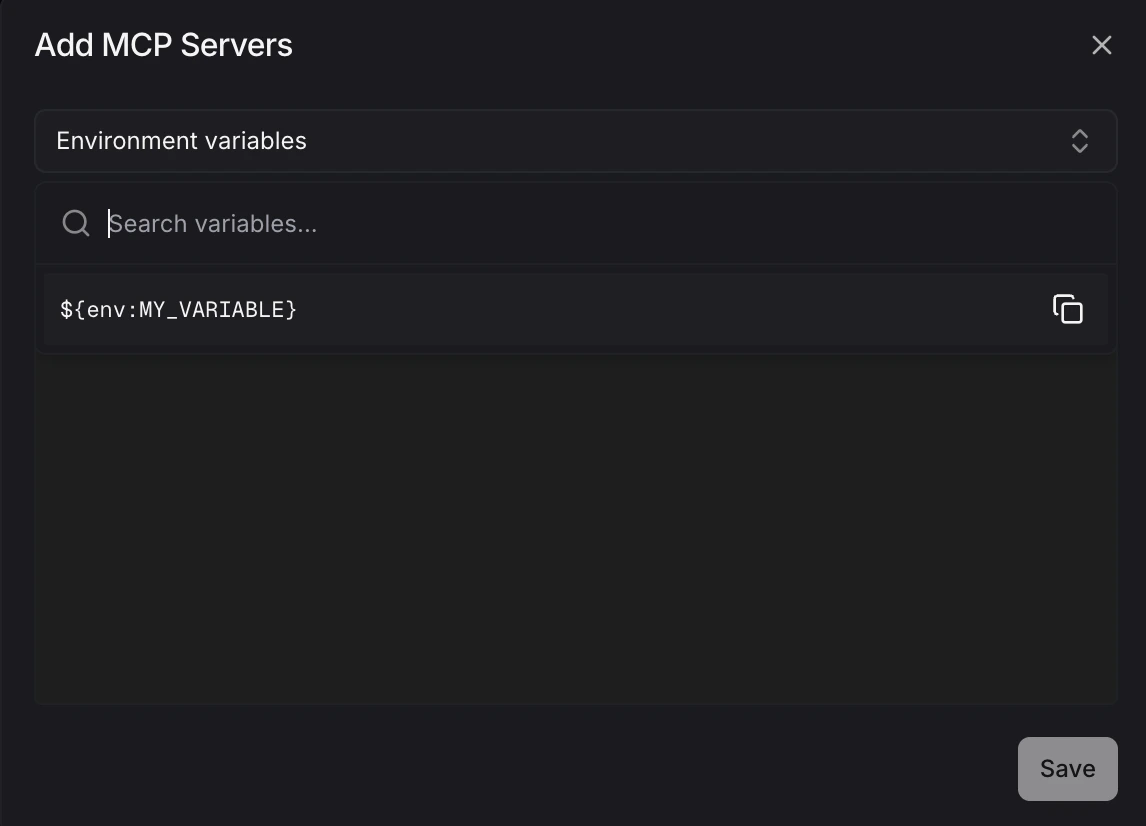 Only global environment variables can be referenced from custom MCP configs. Repository-scoped variables are not available here. Keep secrets in **Settings → Environment Variables** and reference them from the JSON instead of hardcoding tokens, keys, or connection strings.
## Configuration format
Each custom MCP server is defined as a JSON object.
| Field | Required | Description |
| --------- | -------- | ----------------------------------------------------------------------------------------------------------------------- |
| `command` | Yes | The executable Blocks should run, such as `npx`, `node`, or `python`. |
| `args` | No | Arguments passed to the command. |
| `env` | No | Environment variables passed to the MCP server process. Use `${env:VARIABLE_NAME}` to reference saved global variables. |
Blocks validates the JSON before saving. If you paste multiple named MCP configs, Blocks detects them and lets you review the generated server names before saving.
## Choose agent access
After saving a custom MCP server, open its settings page to edit the JSON configuration and choose which agents can use it. Toggle on the agents that should have access.
Only global environment variables can be referenced from custom MCP configs. Repository-scoped variables are not available here. Keep secrets in **Settings → Environment Variables** and reference them from the JSON instead of hardcoding tokens, keys, or connection strings.
## Configuration format
Each custom MCP server is defined as a JSON object.
| Field | Required | Description |
| --------- | -------- | ----------------------------------------------------------------------------------------------------------------------- |
| `command` | Yes | The executable Blocks should run, such as `npx`, `node`, or `python`. |
| `args` | No | Arguments passed to the command. |
| `env` | No | Environment variables passed to the MCP server process. Use `${env:VARIABLE_NAME}` to reference saved global variables. |
Blocks validates the JSON before saving. If you paste multiple named MCP configs, Blocks detects them and lets you review the generated server names before saving.
## Choose agent access
After saving a custom MCP server, open its settings page to edit the JSON configuration and choose which agents can use it. Toggle on the agents that should have access.
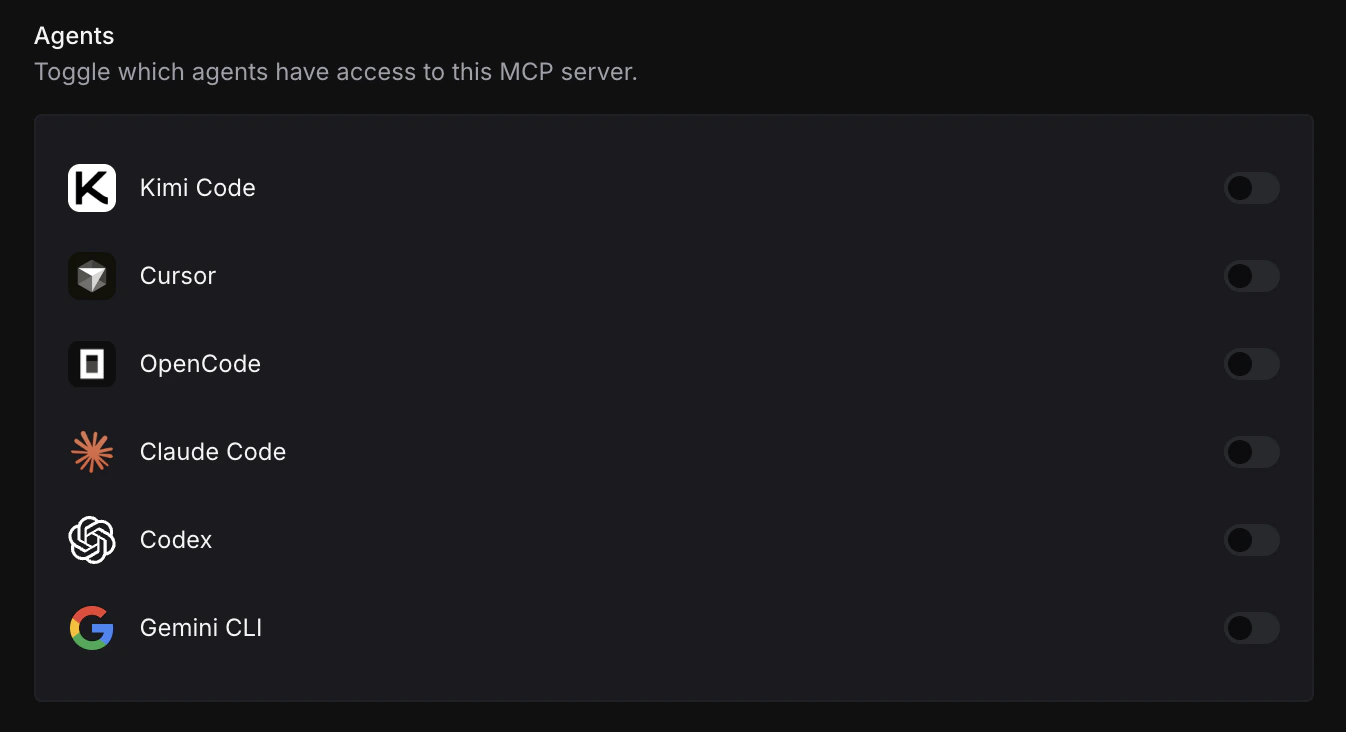 Agent access is workspace-wide. Enable only the agents that need the MCP server so unrelated agents do not receive extra tools.
## Simple workflow
1. Create any needed secrets in **Settings → Environment Variables** using the **Global** namespace.
2. Go to **Settings → MCP Servers** and click **Add MCP**.
3. Copy environment variable references from the selector and paste them into the MCP JSON.
4. Save the server.
5. Open the server settings and enable the agents that should use it.
## Example configurations
### Internal tool with authentication
```json theme={null}
{
"command": "node",
"args": ["/usr/local/bin/my-internal-tool"],
"env": {
"AUTH_TOKEN": "${env:INTERNAL_TOOL_TOKEN}",
"API_BASE": "${env:INTERNAL_TOOL_URL}"
}
}
```
### Python-based MCP server
```json theme={null}
{
"command": "python",
"args": ["-m", "my_mcp_package"],
"env": {
"SECRET_KEY": "${env:MY_SECRET_KEY}"
}
}
```
Agent access is workspace-wide. Enable only the agents that need the MCP server so unrelated agents do not receive extra tools.
## Simple workflow
1. Create any needed secrets in **Settings → Environment Variables** using the **Global** namespace.
2. Go to **Settings → MCP Servers** and click **Add MCP**.
3. Copy environment variable references from the selector and paste them into the MCP JSON.
4. Save the server.
5. Open the server settings and enable the agents that should use it.
## Example configurations
### Internal tool with authentication
```json theme={null}
{
"command": "node",
"args": ["/usr/local/bin/my-internal-tool"],
"env": {
"AUTH_TOKEN": "${env:INTERNAL_TOOL_TOKEN}",
"API_BASE": "${env:INTERNAL_TOOL_URL}"
}
}
```
### Python-based MCP server
```json theme={null}
{
"command": "python",
"args": ["-m", "my_mcp_package"],
"env": {
"SECRET_KEY": "${env:MY_SECRET_KEY}"
}
}
```